

A fully optimized Facebook Page is a powerful tool for connecting with customers and driving business growth. This A-Z guide will walk you through every step of optimizing your Page’s information to build trust and improve visibility.
Optimizing the ‘About’ Section
The ‘About’ section is the foundation of your Facebook Page, providing customers with the essential details they need to know about your business. Optimizing this information is the first step toward building a professional and trustworthy online presence.
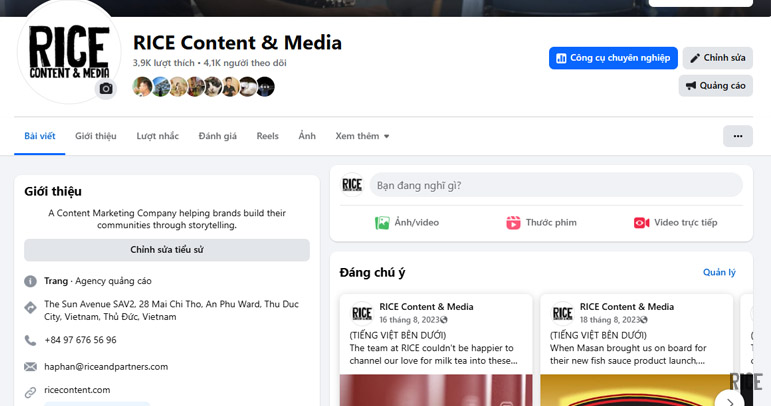
How to Update Contact Information Accurately (Phone, Email, Website)
Accurate contact information is crucial for communication. If a customer can’t easily find your phone number, email, or website, you risk losing a potential sale.
- To update: Go to your Facebook Page, click on ‘Edit Page Info’ or find the ‘About’ tab and select ‘Edit’.
- Phone: Enter your primary business phone number. This allows customers to call you directly from the Page, especially on mobile.
- Email: Provide a business email address that is monitored regularly.
- Website: Add a link to your website’s homepage. Ensure the URL is correct and leads to a secure (HTTPS) site.
Regularly check these details to ensure they are always up-to-date.

Writing a Short and Compelling Business Description
Your short description appears prominently on your Page and is your chance to make a great first impression. It should be a concise summary of what your business offers.
- Keep it brief: You have a limited character count, so be direct.
- State what you do: Clearly explain your product or service.
- Include your unique selling proposition (USP): What makes you different from competitors?
- Use a keyword: Naturally include a primary keyword that describes your business (e.g., “Artisanal bakery,” “Digital marketing agency”).
Connecting with Customers Through the “Our Story” Section
The “Our Story” section (often found under ‘Additional Information’) is where you can share a more detailed narrative about your brand. This is your opportunity to build a deeper connection with your audience.
- Tell your history: How did your business start?
- Share your mission: What is your purpose? What problems do you solve for your customers?
- Introduce your team: Put a face to the name to build trust and personality.
- Use compelling images and formatting to make the story engaging and easy to read.

Turning Viewers into Customers: Setting Up the Call-to-Action (CTA) Button
Your Page’s Call-to-Action (CTA) button is one of the most important tools for converting visitors into customers. It’s a prominent button located at the top of your Page that directs users to take a specific action.
Common CTA Button Types and When to Use Them
Choosing the right CTA depends on your primary business goal. Here are the most common options:
- Send Message: Encourages users to start a conversation via Messenger. Ideal for lead generation and customer support.
- Call Now: Prompts users on mobile to call your business directly. Perfect for service-based businesses, restaurants, and appointments.
- Shop Now: Links directly to your website’s product or sales page. Essential for e-commerce and retail businesses.
- Sign Up: Directs users to a newsletter sign-up form or a registration page. Great for building an email list or promoting events.
A Step-by-Step Guide to Setting Up and Testing Your CTA Button
- Go to your Facebook Page.
- Click the ‘+ Add a Button’ or ‘Edit [CTA Name]’ button below your cover photo.
- Choose the button type that best fits your business goal from the list.
- Follow the on-screen instructions to add the relevant link (website, phone number, etc.).
- Click ‘Save’.
- Crucially, test your button. Hover over the button, select ‘Test Button’, and ensure it directs you to the correct destination and works as expected.

Increasing Professionalism with Additional Information
Adding more detailed information to your Page enhances your credibility and provides customers with everything they need in one place. Optimizing these small details can make a big difference.
How to Set Your Business Hours
Displaying your business hours manages customer expectations and prevents confusion.
- In the ‘Edit Page Info’ section, scroll down to ‘Hours’.
- You can select ‘No hours available’, ‘Always Open’, ‘Permanently Closed’, or set specific hours for each day of the week.
- Be sure to update these for holidays or special events to keep your customers informed.

How to Add and Describe the Services You Offer
For service-based businesses, the ‘Services’ tab is a fantastic feature. It allows you to showcase what you offer, acting like a mini-service menu.
- Go to the ‘Services’ tab on your Page. If it’s not visible, you may need to add it through Page settings and templates.
- Click ‘Add a Service’.
- For each service, you can add a name, price, detailed description, and even an image.
A Guide to Creating a Custom and Memorable @Username
Your Page’s username (e.g., @YourBusinessName) creates a custom URL (facebook.com/YourBusinessName) that is easy for customers to find and remember.
- In the ‘Edit Page Info’ section, you’ll find the ‘Username’ field.
- Choose a username that is as close to your business name as possible.
- Keep it short, simple, and consistent with your handles on other social media platforms for strong branding.

By carefully optimizing information on your Facebook Page, you achieve two critical goals. Complete and accurate information not only helps customers find and trust you but also helps Facebook’s algorithm better understand your Page, increasing its visibility to the right audience. Thank you for reading our guide! Don’t forget to follow us to stay updated with more news and helpful tips.